Provider > Detail
Use the Provider > Search page locate the details of the Provider you would like to review.
Provider > Detail
To access the Detail from the Search Results grid, click on the Provider Name, or:
- Select the Provider activity from the Navigation Bar.
- Open the Detail page. Depending on your Operator type or previous selection, the Provider field may be populated. If not, press Select >> to enter the criteria to search for a Provider. The more criteria you add, the more specific the results of your search will be.

- The system generates a Search Results grid on the lower portion of the screen listing all records matching the specified criteria. To select a Provider, click on the corresponding radio button to access its Detail page.
- Press OK.
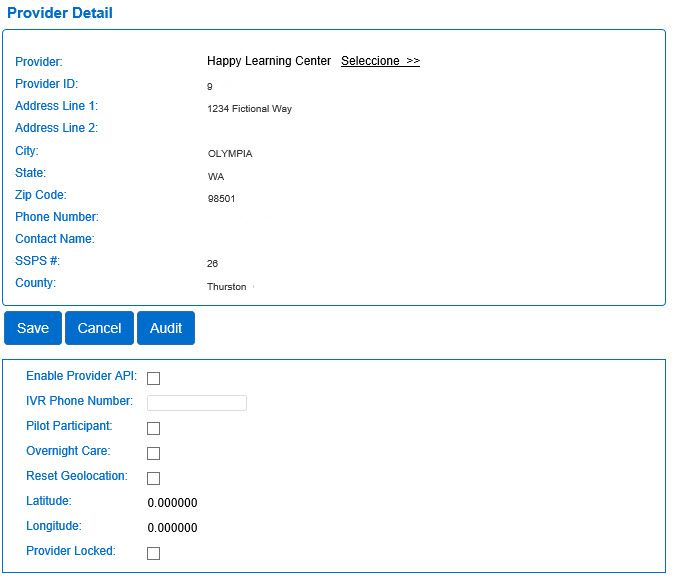
Note that again, it is possible to Search for a Provider from this page by pressing Select >>.
- The upper section of the Provider > Detail page displays information on the Provider, including its ID number, address, contact information, county, etc. These fields cannot be modified.
- If necessary, make changes to the fields in the lower section of the Provider > Detail page.
- Press Save.
Audit
To view an audit of all changes made to a Provider:
- Press Audit.

- A table listing the history of all changes made to the records of the selected Provider displays. Use the vertical and horizontal scroll bars to view additional records and columns.

- Press Close to exit.